Connectors
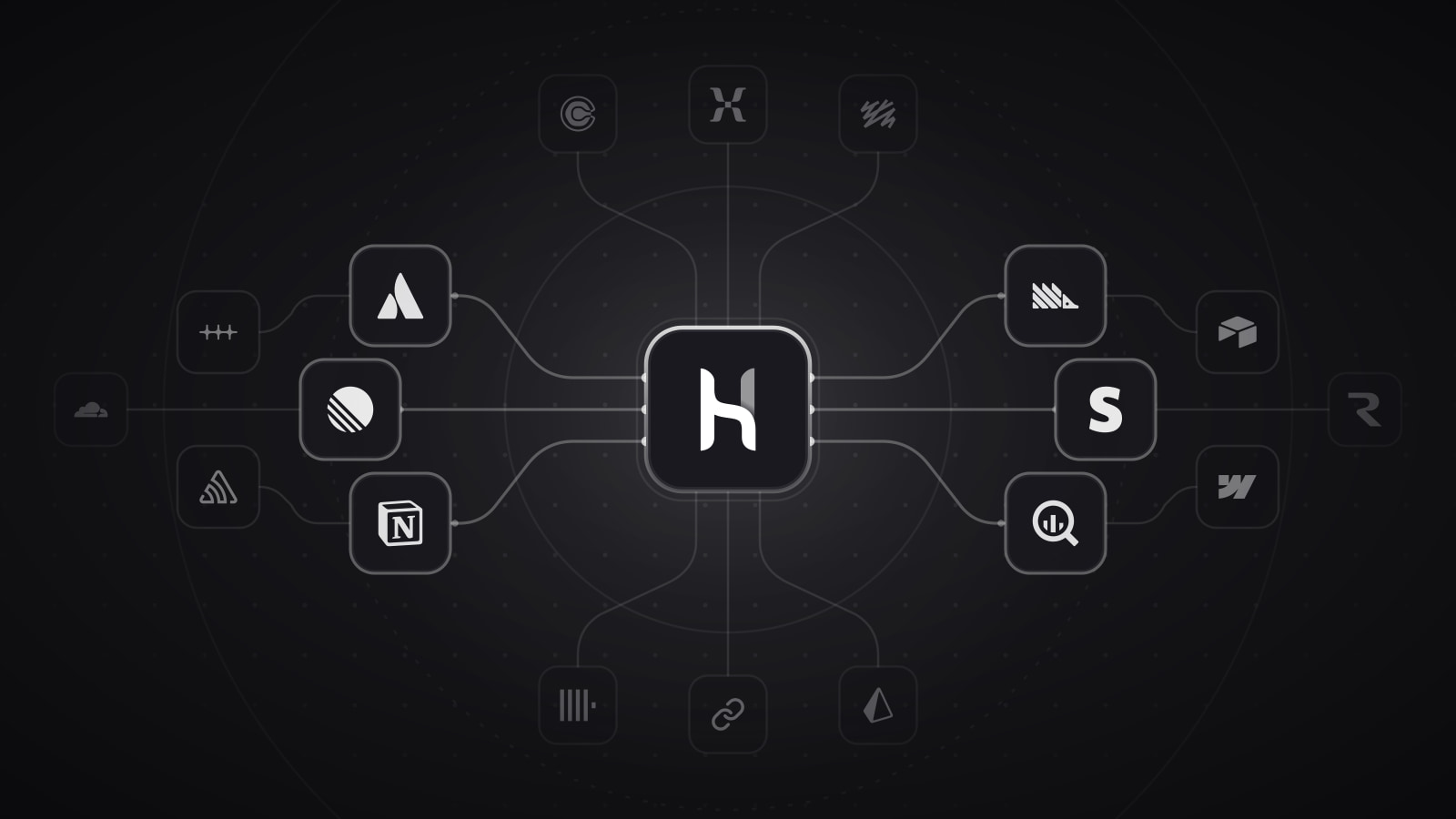
Connect 45 tools and custom MCP servers to Henosia AI and the apps you build. Now in early access in Labs.
Most of the context behind an internal app already lives somewhere else. Tickets sit in Jira or Linear, specs live in Notion, product numbers sit in PostHog or BigQuery, and automations run in n8n.
Connectors are now in early access in Labs for every Henosia account. You can link 45 built-in tools across nine categories, plus any remote HTTPS MCP server, to Henosia AI and the apps you build.
Two ways a connector works
Connectors work in two modes, and tools like Atlassian, n8n, and PostHog support both.
For Henosia AI lets Henosia read and act in your tools while building with you. Sign in with your account on 44 hosted connectors, including Linear, Notion, Stripe, Sentry, Airtable, Calendly, Webflow, and Cloudflare, or add your own MCP server. Henosia sees and does only what your account allows. In Plan, Henosia runs read-only actions only. In Build, it pauses and asks for permission before making unrequested changes or changing who can see or edit data.
For your app lets the app you build call a tool at runtime. This mode is available for Atlassian, BigQuery, n8n, and PostHog. You save the API key, token, or service account once in Henosia, and Henosia verifies the credential before saving. Server requests pass through Henosia, which attaches the encrypted credential on the server so keys never enter your code or a visitor's browser.
Connect from chat without pasting keys
You do not need to set up a connector before you start building. Ask Henosia to pull open Jira issues or build an analytics page on top of BigQuery.
When a project does not have that connector yet, Henosia shows an offer card in chat that explains why it needs access. Choose Connect to sign in or finish setup, pick an account you or your organization already connected, or choose Not now to continue without it. Once connected, Henosia attaches the connector to the project and continues your task.
Control what your live app can reach
Adding a connector in the dashboard does not expose it to every project. You attach connectors project by project from the Connectors panel in the builder's left toolbar.
For each For your app connector, you choose when the app can call it.
- For signed-in people limits calls to visitors signed in with Henosia Auth. New projects enable this by default.
- On its own lets your app call the connector with no one signed in, such as on a public page or in a background workflow.
By default, preview and published apps share the same connection. When you want to keep test data separate from production, turn on Use a different account when published in the connector's settings and enter separate live credentials. Before you publish an app that uses a personal or restricted connector, Henosia checks whether your app's sign-in settings would open that connector to a wider group and asks you to narrow access or confirm.
Share and govern across your organization
Organization owners and admins can configure shared connectors under Organizations, then your organization, then Connectors. Teammates can use those connections without adding their own credentials, and admins can scope each shared connection to everyone in the organization or to selected members.
Personal connections that members attach to projects also appear on the organization's Connectors page. Owners and admins can switch any connection off or delete it to cut off access across live apps on the next request, without ever seeing another member's credentials.
Turn on Connectors in Labs
Every Henosia account can turn on Connectors today.
- Open Labs in the dashboard sidebar, or go to app.henosia.com/settings/labs.
- Switch Connectors to On.
Switching Connectors off later hides them in the dashboard and builder, and apps you already published keep running. If a tool your team uses is not in the gallery yet, choose Request a connector in the dashboard or add it directly with Connect an MCP server.
Read the Connectors documentation for setup guides and the full list of 45 built-in tools.